What happened?
Tell us what you were trying to do and what happened instead. For access problems, mention whether the customer used their phone, a keypad or a QR reader.

Support
Get help with customer access, system settings or equipment at your Bearbox site.
You don’t need to diagnose the problem first. Tell us what you expected to happen and what happened instead.
Email us your company and site name, what happened and when. Include any relevant screenshots so the team can investigate your installation.
support@bearbox.euMonday–Saturday · 08:30–17:00 GMT.
Support is handled by email.
If a Bearbox team member asks you to, download and run our remote support application. It works on Windows, macOS and Linux. When you’re done, end the session and close the application.
Download support (opens a new tab)Include your site and company names, the affected equipment or unit, and roughly when the issue happened. Add any message shown on screen.
Tell us what you were trying to do and what happened instead. For access problems, mention whether the customer used their phone, a keypad or a QR reader.
Name the affected access point or unit as it appears in Bearbox, if you know it. Include the approximate time and date, and whether you noticed the issue once or on several occasions.
Send a screenshot of an unexpected message or status, or a photo showing the affected equipment. Cover passwords, access codes and unrelated customer details.
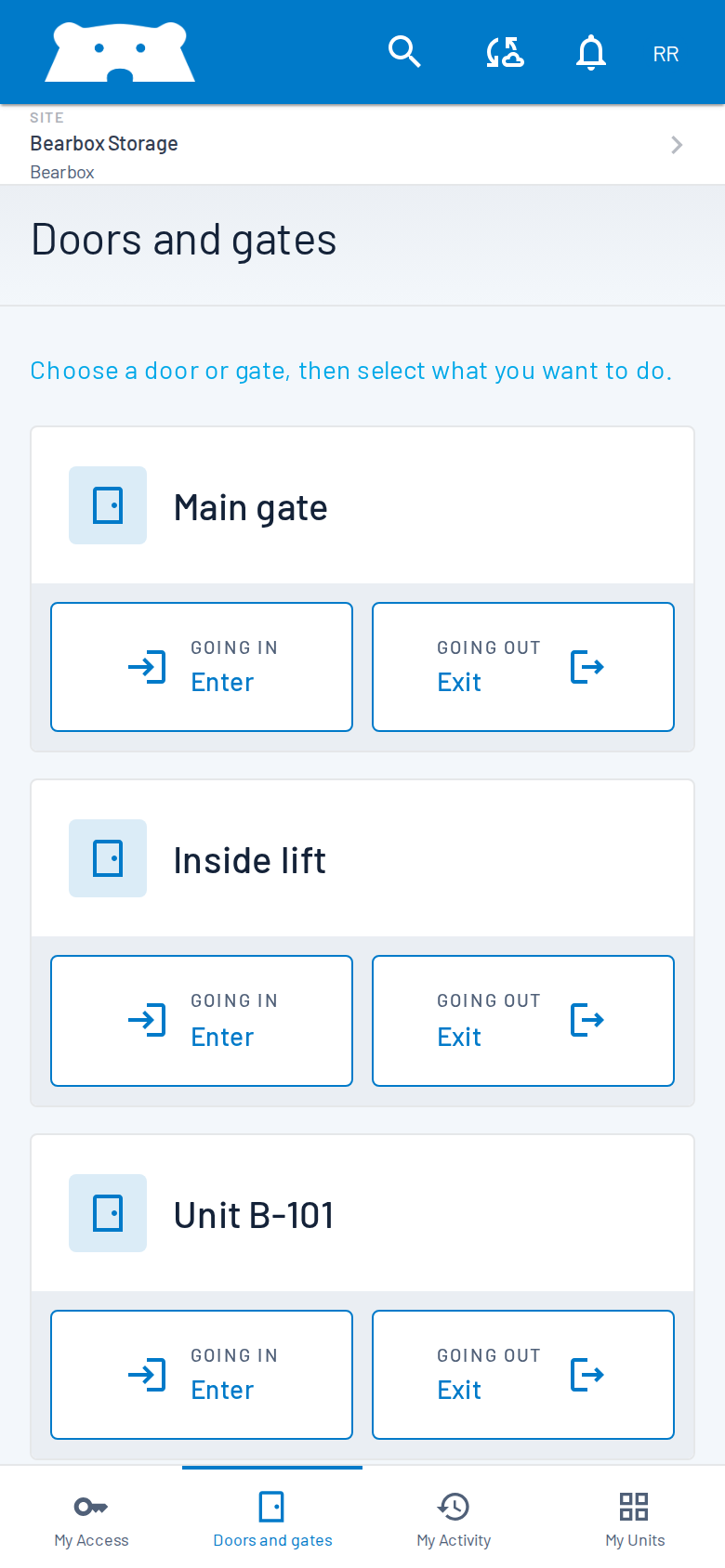
A screen message, indicator light or door position can help us understand the issue. Leave equipment closed and wiring untouched while we work out the next step.
Email helps us keep your installation details and the investigation together. Reply in the same conversation with updates or screenshots. If the issue changes, tell us what changed and when.
Describe the issue in your own words. Include your site and company names, the affected door, gate, unit or device, and what you expected to happen. You can send a screenshot of a message without diagnosing its cause.
Show the relevant message or status and enough of the screen to identify where it appears. Cover passwords, access codes and unrelated customer information. Add a short explanation of what you were doing when the issue appeared.
Wait until a Bearbox team member asks you to download and run the remote support application. They can then help with your system through TeamViewer. When you’re done, end the session and close the application.